The pipeline from “I’m opening a VN book club” to “I’m modding a Unity game” certainly is a weird one. However, it happened.
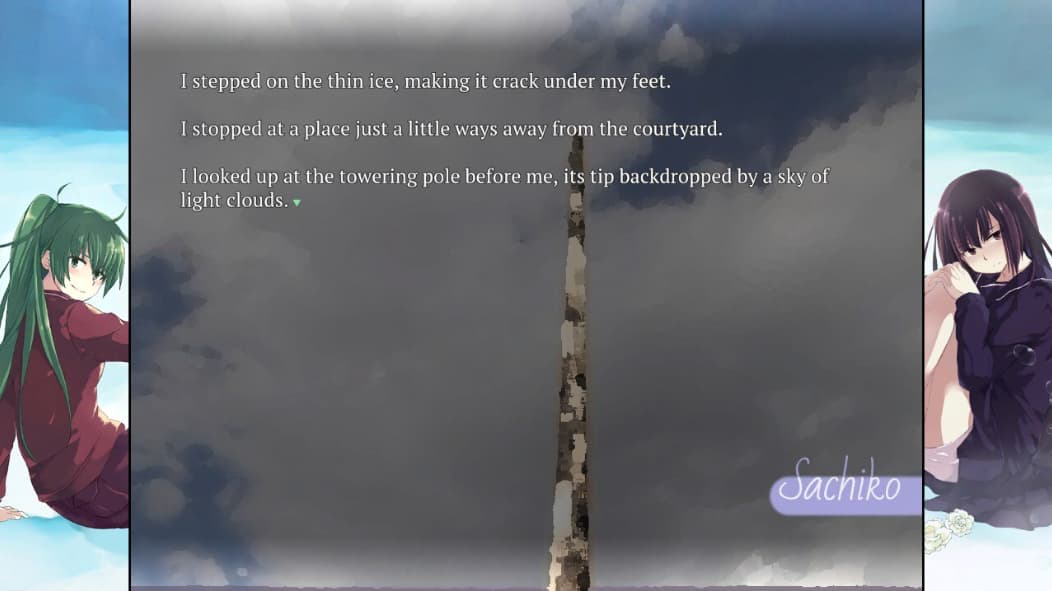
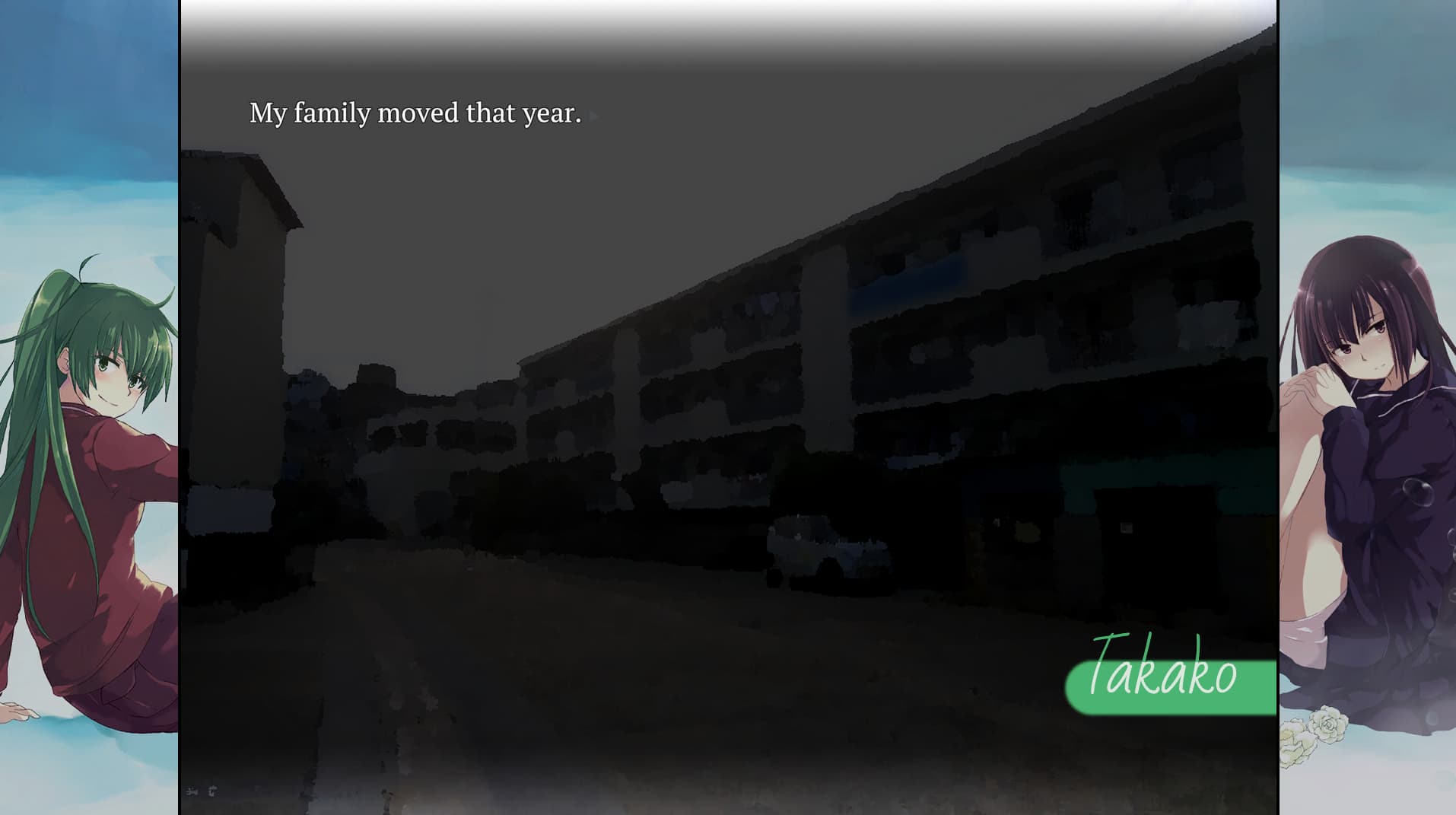
As mentioned in the chapter discussion threads, especially on smaller screens (e.g. the Steam Deck) the background makes reading text pretty hard sometimes.
Knowing this is a Unity game and me previously modding others, I figured this must be pretty simple to adjust too.
I made a modded asset bundle that overrides the character frames with a darker version, it’s simply the same image overlaid again, making it effectively twice as dark.
Default background:
Modded version:
Download
You can download the modified asset bundle from this link:
https://desu.cloud/seabed/image
Installation
Desktop
- Download the above file, it’s a file called
imagewithout any file extension - Open Steam, go to your library and open SeaBed, in the same row as the Play button, click on the cogwheel at the right-hand side, then Manage > Browse local files.
- This opens a file browser at the location where SeaBed is installed. Go into the
SeaBed_Datafolder, and inside there, into theStreamingAssetsfolder. - (Optional) Scroll down, find the original
imagefile and rename to something likeimage_backupin case things go wrong. - Copy the downloaded
imagefile into theStreamingAssetsfolder. - Done!
Steam Deck
- Switch into Desktop Mode
Either hold the power button until the menu appears or press the Steam button and navigate down to Power - (Optional) If you don’t have a browser installed yet, press the Steam Deck icon in the bottom left, navigate to the search bar of the system and click it. Hold Steam + X to open the on-screen keyboard and type
Firefox, a shortcut to install Firefox should appear. - Open the above link in a browser and download the file.
- Use Dolphin, a shortcut should already be in the taskbar, to navigate to the Downloads folder.
- Open Steam from the Desktop shortcut, go to your library and open SeaBed, in the same row as the Play button, click on the cogwheel at the right-hand side, then Manage > Browse local files.
- This opens a file browser at the location where SeaBed is installed. Go into the
SeaBed_Datafolder, and inside there, into theStreamingAssetsfolder. - Copy the downloaded
imagefile into theStreamingAssetsfolder. - Done!
Troubleshooting
In case something breaks in the game (this shouldn’t happen, but I won’t guarantee anything), do the following:
- Restore the original
imagefile from a previously made backup as per installation instructions. - Open the library entry of SeaBed in Steam, go to Manage > Properties > Installed Files and click Verify integrity of game files. This will redownload any non-original game file and make things work as before.
Hope this will ease your reading time as much as it does for me!

